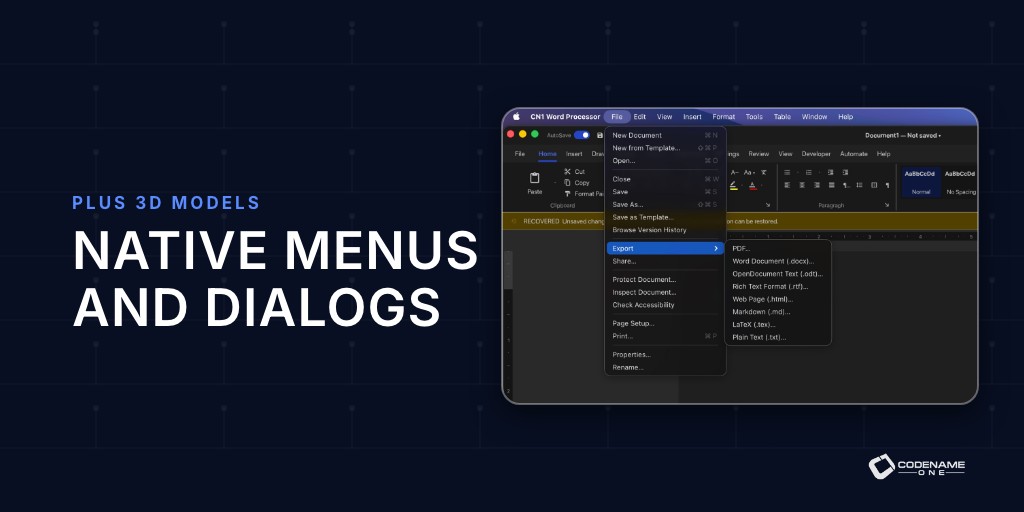
A desktop app gets judged in the first ten seconds. If the menu bar is wrong, Cmd+Q does nothing or the Save dialog looks like it came from a different decade, people notice, even if they can’t say what bothers them. The word processor from last Friday’s post needed all of that to hold up next to a native app, so those pieces are now part of Codename One. They work with the code you already write for a phone.
The real open and save dialogs
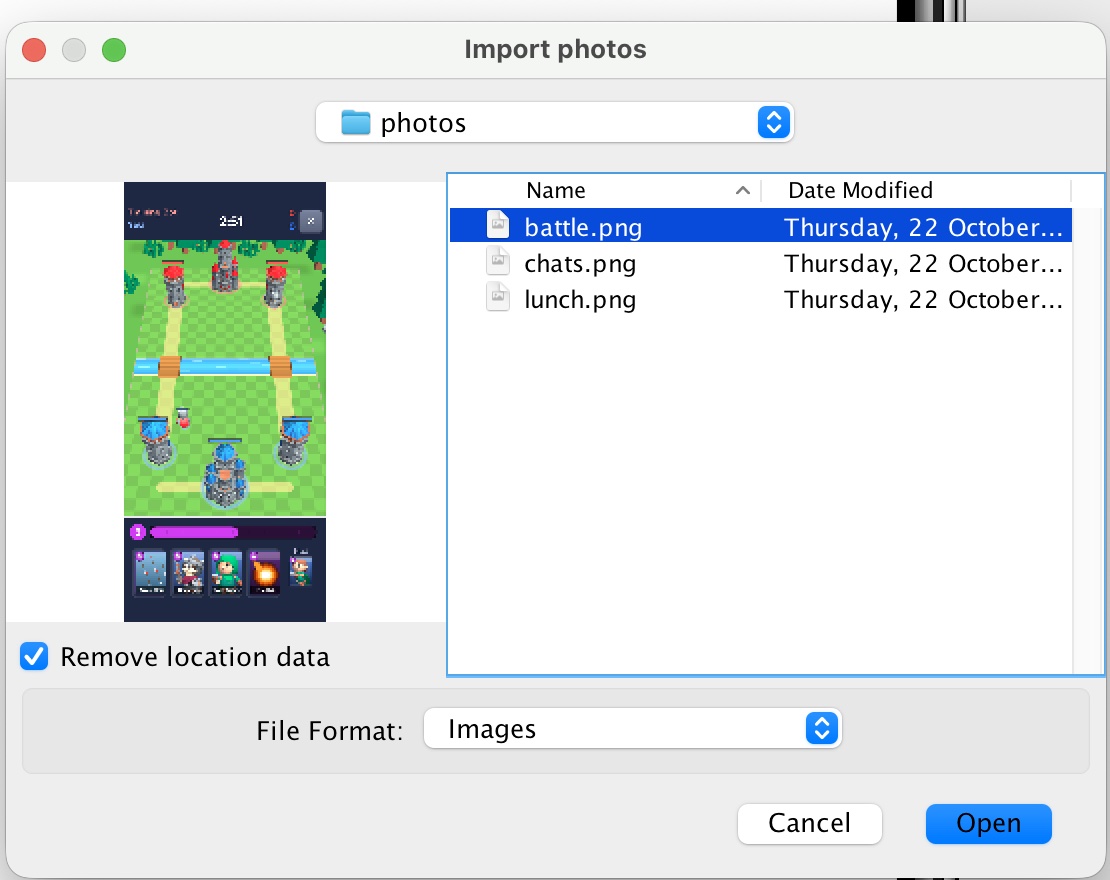
openFileChooser() picks one file. Desktop apps need more: several filters, a suggested name, extra options in the dialog and a preview while the user browses. showOpenDialog() and showSaveDialog() cover that:
Display.getInstance().showOpenDialog(new OpenFileRequest()
        .title("Import photos")
        .multiSelect(true)
        .addFilter(new FileTypeFilter("Images")
                .extensions("png", "jpg").mimeTypes("image/*"))
        .addOption(FileDialogOption.checkbox("strip", "Remove location data", true))
        .preview(path -> {
            try (InputStream in = FileSystemStorage.getInstance().openInputStream(path)) {
                return new ScaleImageLabel(Image.createImage(in));
            } catch (IOException err) {
                return new Label("No preview");
            }
        }),
    result -> {
        if (result.isCancelled()) {
            return;
        }
        boolean strip = "true".equals(result.getOptionValue("strip"));
        for (String path : result.getPaths()) {
            // import each file
        }
    });
Every platform opens and saves files. The extras appear where the platform has them, and the rest ignore them, so one request works everywhere:
| Platform | Open | Save |
|---|---|---|
| macOS | NSOpenPanel | NSSavePanel, with format list, options and tag field |
| Windows | IFileOpenDialog | IFileSaveDialog, with options as dialog controls |
| Linux | GtkFileChooser | GtkFileChooser with overwrite confirmation |
| Android | The system document picker, several files, folders | Create document, with no storage permission |
| iOS | The document picker, several files, folders | Exported through the document picker |
| Browser | The browser’s file picker | A download with the suggested name |
A save request writes its content after the user has picked the location, off the EDT, and it can see which format and options were chosen. Platform hints, such as the macOS tag field or the folder Android starts in, are one call each.
A menu bar that follows each platform
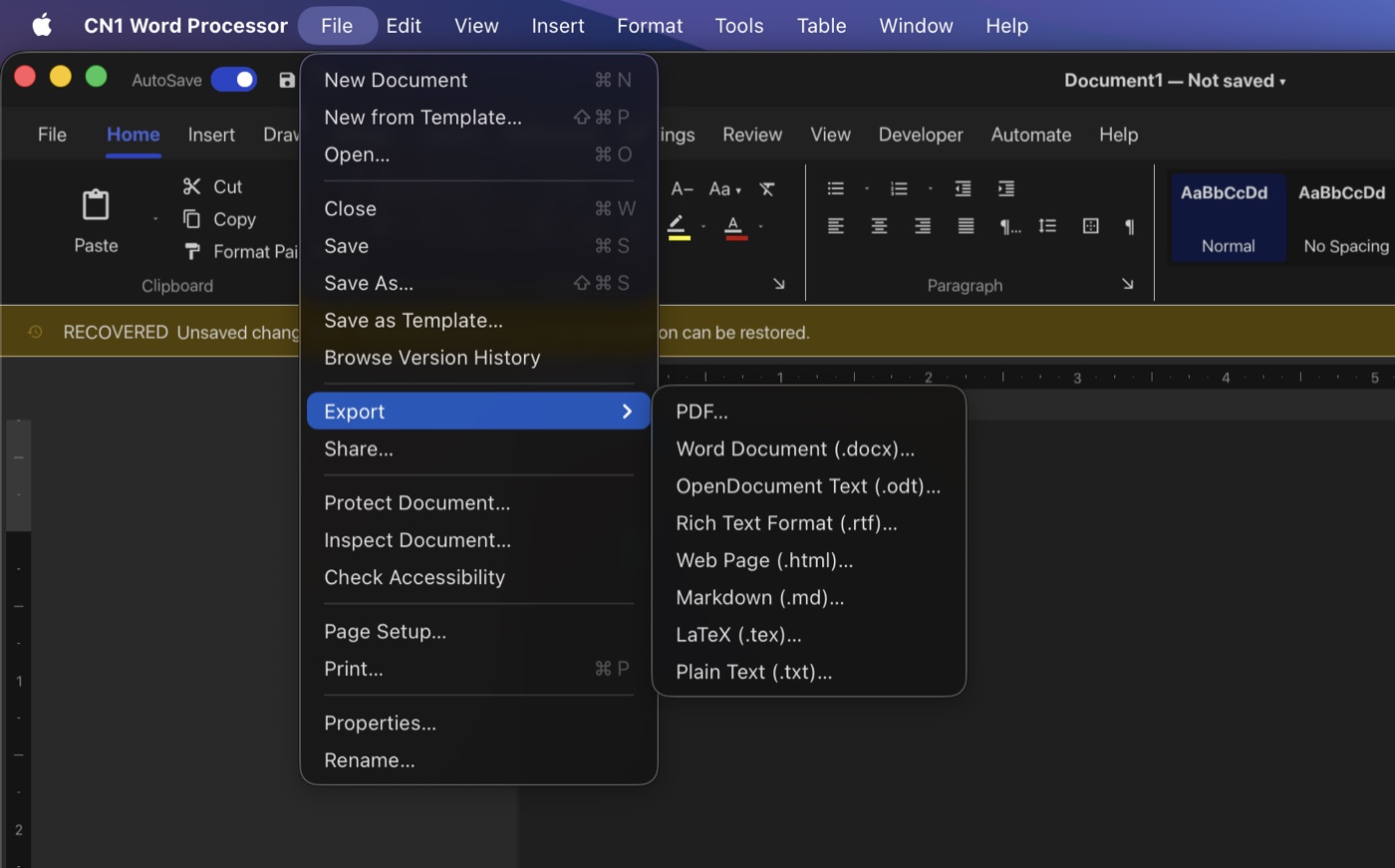
A Command already knows its name, icon, and action. Tell it where it goes and it shows up in the native menu bar on macOS, Windows, Linux and in the browser build. Paths make submenus, and check and radio items work the way you’d expect:
String[] zooms = {"50%", "100%", "200%"};
for (String zoom : zooms) {
    Command c = Command.create(zoom, null, e -> setZoom(zoom));
    c.setDesktopMenu("View/Zoom").setDesktopMenuGroup(1).setDesktopRadioGroup("zoom");
    c.setDesktopChecked("100%".equals(zoom));
    form.getToolbar().addCommandToOverflowMenu(c);
}
On a phone the same commands stay in the overflow menu, so there’s nothing to branch on.
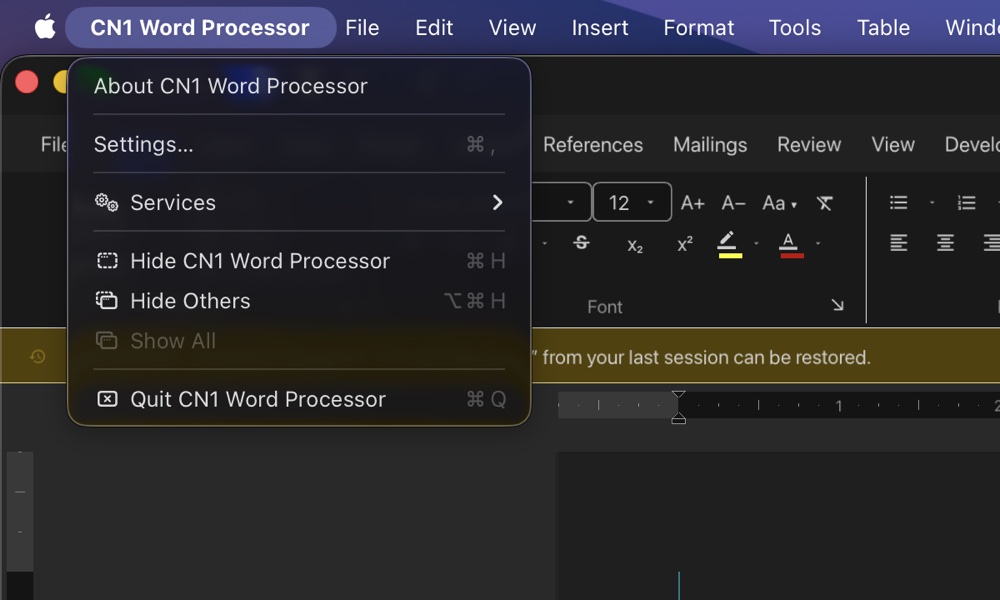
About, Settings and Quit live in different places on every desktop, under different names. Give the command a role and each platform puts it where its own apps do, with its own shortcut:
Command settings = Command.createDesktopRole(Command.DESKTOP_ROLE_SETTINGS, e -> showSettings());
Command quit = Command.createDesktopRole(Command.DESKTOP_ROLE_QUIT, e -> quit());
| Role | macOS | Windows | Linux |
|---|---|---|---|
| About | Application menu, first | Help, last | Help, last |
| Settings | “Settings…” in the application menu, Cmd+, | “Options” under Tools | “Preferences” at the foot of Edit |
| Quit | “Quit” in the application menu, Cmd+Q | “Exit” at the foot of File | “Quit” at the foot of File, Ctrl+Q |
The File and Edit roles work the same way, so Redo is Cmd+Shift+Z on a Mac and Ctrl+Y on Windows without you looking it up. On macOS a role replaces the built-in item, so the menu never shows two Quit items.
One more small thing that makes an editor feel right: form.setDocumentModified(true) puts the dot in the close button on macOS and an asterisk before the title on Windows and Linux, and the Save command enables itself while there’s something to save.
Animated 3D models
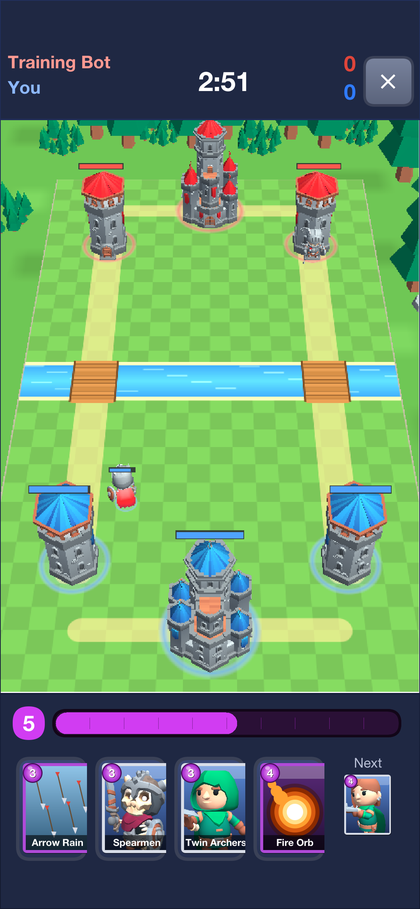
The other big addition came from Skirmish. GltfLoader loads glTF 2.0 models, binary .glb or JSON .gltf, together with their textures, so a textured model renders with no extra setup. AnimatedModel brings them to life:
GltfScene knight = GltfLoader.loadScene(in);
AnimatedModel unit = new AnimatedModel(device, knight);
unit.play("Walking_A", true);
unit.addTo(gameView);
// later
unit.crossFade("1H_Melee_Attack_Chop", 0.15f, false);
It plays the model’s animation clips, cross-fades between them, deforms skinned meshes with their skeleton and carries rigid parts, like a sword in a hand, along with their bones. Skinning runs on the CPU, so it looks identical on every port and needs nothing from the shaders. Many instances can share one loaded scene: the vertex data, clips and textures are shared, and only the posed vertices are per instance. That’s how a Skirmish battle fills the arena with troops.
The desktop integration guide, the file system chapter and the 3D graphics chapter have the details.
Tomorrow, the last post of the week: WebRTC Calls, Key Agreement and ORM Checks at Build Time.