An existing desktop application written with Swing and AWT, with the SwingX
component set, or with JavaFX can build and run as a Codename One
application without changes to its Java code. The desktop sources go into a
Codename One project, the build maps them onto Codename One’s implementation
of the java.awt, javax.swing, org.jdesktop.swingx and javafx.* APIs,
and the result runs on every Codename One target: iOS, Android, the web, the
native desktop ports and the simulator.
No desktop Java runtime is involved. Buttons, text fields, check boxes,
sliders and tabs are Codename One components that take the platform’s
theme, layout managers and layout panes run the rules they run on the
desktop, and code that paints with Graphics2D or a JavaFX Canvas draws
through Codename One’s graphics.
Motivation
A Swing or JavaFX application that already works has three reasons to move.
It reaches every platform from one code base. The same sources build for iPhone and iPad, Android phones and tablets, the browser, and native Linux, macOS and Windows. Nothing is rewritten per platform, and the desktop version keeps its windows, menus, and keyboard.
It ships as one native program. A native desktop build is a single executable with no Java runtime to bundle, install, or update. It starts faster, holds less memory and downloads smaller than the same application with a trimmed Java runtime beside it. Size, memory and start-up measures all three for eight applications, built both ways.
It gets the APIs desktop Java never had. The desktop sources compile next to the Codename One API and can call it directly, as Calling Codename One from desktop code shows. That fixes several of the oldest pain points of Swing and JavaFX development:
| What a desktop developer reaches for | What Codename One has |
|---|---|
A camera, a microphone, the photo library |
|
An embedded browser without a heavyweight engine to ship |
|
A local database | SQLite on every platform through |
JSON without a reflection library |
|
REST clients and OpenAPI |
|
A server in the same language | A Java backend that shares its contract and data classes with the app. See Server-side backend and Backend controllers, contracts and WebSockets. |
Styling without look-and-feel code | CSS compiled into a theme at build time, and applied live in the simulator as you save. See Styling and theming and CSS. |
AI agents that can work with the app | Over the Model Context Protocol (MCP), an agent reads and drives a development build’s user interface, and a backend publishes tools for agents in production. See MCP Headless API and Backend MCP and the agent loop. |
Push notifications, biometrics, maps, in-app purchase and the rest of the guide are available in the same way.
The layer implements the parts of each toolkit applications use, and the build tells you, file by file and line by line, about anything an application uses that it doesn’t implement (Unsupported API is a build error). New code can use either API: the two live in one project.
Quick start
Create a Codename One application project (for example from the initializr), then import the desktop project into it:
mvn cn1:import-desktop-project -Dcn1.desktop.import=/path/to/MyDesktopApp
The goal accepts a Maven or a Gradle project. It copies the project’s
src/main/java, src/main/kotlin and src/main/resources into
common/src/main/desktop, generates the Codename One main class that starts
the application (The entry point), and lists what becomes of
each of the project’s dependencies.
Two more parameters settle the cases the goal can’t decide for itself:
mvn cn1:import-desktop-project -Dcn1.desktop.import=/path/to/MyDesktopApp \
    -Dcn1.desktop.module=app \
    -Dcn1.desktop.mainClass=com.example.Main
cn1.desktop.module names the module to import when the project’s root has
no sources and more than one of its modules does. cn1.desktop.mainClass
names the class the application starts through when the project leaves more
than one candidate. In both cases the goal stops before it copies anything
and lists the choices.
After that, run and build as you would any Codename One application. The sources are the same for every target:
mvn cn1:run                                    # the simulator
mvn cn1:buildIos                               # iOS, on the build server
mvn cn1:buildAndroid                           # Android, on the build server
mvn cn1:buildJavascript                        # the JavaScript port
mvn package -Dcodename1.platform=ios -Dcodename1.buildTarget=ios-source          # an Xcode project
mvn package -Dcodename1.platform=android -Dcodename1.buildTarget=android-source  # an Android Studio project
The simulator is the quickest place to see the application, and its skins show it at the size and density of a phone or a tablet. Every target and its options are in the Maven project workflow chapter.
Gradle
A Codename One project built with Gradle (see Gradle project workflow)
takes the same sources in the same place, src/main/desktop. When that
directory exists the Codename One Gradle plugin adds the toolkit layers and
runs the same build steps, with no configuration:
./gradlew run            # the simulator
./gradlew buildIos       # an iOS build on the build server
./gradlew buildLinuxDevice
Placing the sources by hand
The directory mirrors a desktop project’s src/main:
common/src/main/desktop/
    java/        the desktop application's Java sources
    kotlin/      Kotlin sources, if the application has any
    resources/   images, .properties, .fxml and .css files
The common module’s desktop-compat profile activates when
src/main/desktop exists and adds the Swing and JavaFX layers. Only the
layer the compiled classes use ships, so a Swing application doesn’t carry
the JavaFX runtime. A project created before the profile existed gets it
from the import goal.
The entry point
A ported application is an ordinary Codename One application with an
ordinary main class: a Lifecycle subclass in common/src/main/java. The
import goal generates it, and its start-up calls the Swing application’s
main, or launches the JavaFX Application, on the Codename One event
dispatch thread (EDT). That thread is also the Swing event dispatch thread
and the JavaFX application thread.
The class is yours. Edit it to pass arguments, to set display properties before the first window opens (Display properties), to show a Codename One screen first, or to start the desktop code only for some devices.
How the build works
Three ideas explain everything the build does:
The application is compiled once, against the desktop API, and relinked. Swing code compiles against the JDK’s own
java.awtandjavax.swing, JavaFX code against ajavafx.*API that ships with Codename One, which is why the sources need no changes. The build then points every reference at Codename One’s implementation. No source is translated and nothing is interpreted: each target compiles the result as it compiles any Codename One application, to native code on iOS and the desktop ports, to Android’s bytecode on Android, to JavaScript in a browser.Only what’s used ships. A layer is active only when the application’s classes name its API, and the native builds drop every class and method nothing reaches.
Nothing is found by reflection at run time. FXML documents, style sheets, resource lists and resource bundles are compiled into code by the build. That’s what makes the same application run on iOS, and it’s also why it starts fast everywhere.
The JDK API that ordinary application code uses is available on every
target: java.io.File and java.nio.file, regular expressions, the stream
API, java.time, the executors and concurrent collections, Optional,
Properties, ResourceBundle, logging and preferences.
Unsupported API is a build error
The build checks every reference in the compiled application, so a class, method, constructor or field that a layer doesn’t have stops the build. It never becomes a failure on a user’s device. The message names the API the way the source spells it, with the source file and line:
Compliance check failed with 2 forbidden API references.
See /projects/orders/common/target/codenameone/compliance_check.txt for the full report.
First 2 violation(s):
 - com/example/OrdersPanel#restyleTree()V -> javax.swing.JTree.getUI() is not supported by the Codename One Swing compatibility layer (com/example/OrdersPanel.class) at OrdersPanel.java:48
 - com/example/NotesDialog#printNotes()V -> javax.swing.JTextArea.print() is not supported by the Codename One Swing compatibility layer (com/example/NotesDialog.class) at NotesDialog.java:31
A project with more than a handful of such references gets a summary that groups them by kind and by library, and points at the port report.
The port report
Every build of a project that uses a desktop layer writes
target/codenameone/desktop-port-report.md, whether the check passes or
fails. It says how many of the application’s calls into Swing, AWT and
JavaFX are supported, lists what to change source file by source file with
a Codename One alternative where one exists, and says what became of each
dependency. Set cn1.desktop.report to write it elsewhere:
mvn package -Dcn1.desktop.report=port.md       # Maven
./gradlew build -Pcn1.desktop.report=port.md   # Gradle
To find out how well an application fits before changing a line of it, import it, build it and read the summary at the top of that report.
Porting a large application
A small application usually builds after the import. A large one usually needs some work, and widgets are seldom the reason: the user interface calls of a two-hundred-file Swing application, with FlatLaf for its look and a syntax-highlighting editor, built as written. The work is in the libraries and services around the user interface, and it goes in the order below.
Sort out the dependencies
The import keeps every dependency of the project. One that the layer
implements itself — the JavaFX modules, SwingX, FlatLaf and
RSyntaxTextArea — gets the provided scope: the sources compile against
the real jar and the layer ships in its place.
Every other dependency is built with the application like any dependency
of a Codename One application. Its classes aren’t relocated onto a layer,
so a library written against Swing, AWT or JavaFX — a layout manager such
as MigLayout, an icon library, a component set — fails the check for
unsupported API. Replace it with its Codename One equivalent, or bring its
source into src/main/desktop beside the application’s own, where it’s
relinked and checked like the rest. A library that isn’t about user
interfaces only has to use API a device has.
Use the Codename One equivalent
Where Codename One has an equivalent, the port report names it next to the finding. The common ones:
| Desktop API | Use instead |
|---|---|
|
|
| Supported on the desktop targets through Codename One’s process API,
|
|
|
| The ciphers, MACs and key generators of |
|
|
Java serialization |
|
Reflection over bean properties |
|
A JSON library that binds by reflection |
|
A file watch service | Poll on a background thread with |
JNA, | A |
| The |
Isolate what a phone can’t do
What remains is functionality a phone can’t provide in the same form. Put it behind an interface the application owns, keep the desktop implementation in the desktop project, and give the Codename One build an implementation that uses the Codename One API, a server, or nothing:
/// What the screens ask for. They hold one of these and nothing else.
public interface Tools {
    /// Whether the menu item that opens a terminal should be there at all.
    boolean canOpenTerminal();

    void openTerminal(String directory);

    void showInFileManager(String path);
}

/// The implementation the Codename One build uses. The desktop project
/// keeps its own, written with ProcessBuilder, in a class this build
/// doesn't compile.
public static class DeviceTools implements Tools {
    @Override
    public boolean canOpenTerminal() {
        return false;
    }

    @Override
    public void openTerminal(String directory) {
        throw new UnsupportedOperationException("No terminal on this device");
    }

    @Override
    public void showInFileManager(String path) {
        String url = path.startsWith("file:") ? path : "file://" + path;
        Boolean can = CN.canExecute(url);
        if (can == null || can.booleanValue()) {
            CN.execute(url);
        }
    }
}
This is where most of a large port’s time goes. An application whose screens call straight into its services needs that seam before the seam can get a second implementation. An application that already separates its screens from its services has it, and its port is mostly the first two steps.
Styling and theming
Codename One styles an application with CSS. A theme.css file in the
project is compiled into a .res theme when the application is built, so
the device reads a compact binary theme and never parses a style sheet. In
the simulator the theme is rebuilt each time the file is saved, and the
running application restyles at once. There is no look-and-feel class to
write and no skin to subclass: every component has a UIID, and a CSS rule
for that UIID styles it on every platform, with native themes for iOS,
Android and the desktops underneath. The CSS chapter covers the syntax
and Native modern themes the themes it builds on.
This differs from both desktop toolkits. A Swing look and feel is Java code, UI delegates that paint each widget, chosen at run time. JavaFX reads its CSS at run time and applies it to skins. In Codename One the styling is data, settled at build time, and the same for every platform.
A ported application uses this model in three ways.
Swing look and feel becomes a palette
The standard widgets are Codename One components: a JButton is a Codename
One button, a JTextField is the platform’s text field with its own
keyboard, selection and autocorrection, and the same holds for labels,
check boxes, combo boxes, sliders, progress bars and tabs. They take the
theme of the platform they run on.
UIManager.setLookAndFeel accepts any look and feel, so the usual call at
the top of main runs unchanged and selects a light or a dark palette:
FlatDarkLaf and other dark themes select the dark one, null or the
system look and feel follows the platform’s own setting. Switching while
windows are open restyles them at once. UIManager colors and fonts the
application puts are kept and used, and the ones it reads answer from the
palette.
FlatLaf’s entry points are part of the layer, so an application written
against FlatLaf runs without the FlatLaf jar: setup(), the dark and light
themes, the accent color, style classes and common client properties such
as JTextField.placeholderText.
On a desktop, the desktop.themeMode build hint chooses the theme the
packaged application uses, and native selects the theme of the machine it
runs on:
codename1.arg.desktop.themeMode=native
The native macOS build reads macos.themeMode instead. Both are described
under Desktop themes.
JavaFX style sheets compile with the application
JavaFX style sheets under src/main/desktop/resources are compiled when
the application is built, like the application’s own CSS, into a compact
table that the runtime applies. Type, class, id and pseudo-class selectors,
the descendant and child relations, the cascade, inline setStyle,
looked-up colors and @font-face work as in JavaFX:
.root {
    -app-accent: #2f6fed;
}

.card {
    -fx-background-color: white;
    -fx-border-color: -app-accent;
    -fx-border-width: 2;
    -fx-border-radius: 8;
    -fx-background-radius: 8;
}

#status {
    -fx-text-fill: -app-accent;
    -fx-font-size: 18;
    -fx-font-weight: bold;
}

.card > .button:hover {
    -fx-opacity: 0.85;
}
A property or selector the layer doesn’t style is a build warning with the
file and line, and the rule is left out, which is what JavaFX itself does
with a property it doesn’t know. Redefining a theme color such as
-fx-base or -fx-accent recolors the controls the layer draws itself.
Codename One CSS styles the whole application
The application’s theme.css styles the Codename One components that the
Swing and JavaFX widgets are, so one rule changes a button, a text field or
a dialog across the whole application on every platform. Use it for
anything that should look the same across screens; use the desktop styling
for what’s particular to one screen.
Custom painting
A Swing component that overrides paintComponent paints as it does on the
desktop, through a Graphics2D with shapes, strokes, paints, clipping and
an affine transform:
public class BadgePanel extends JPanel {
    private String initial = "?";

    public void setInitial(String name) {
        initial = name == null || name.length() == 0 ? "?" : name.substring(0, 1);
        repaint();
    }

    @Override
    public Dimension getPreferredSize() {
        return new Dimension(120, 120);
    }

    @Override
    protected void paintComponent(Graphics g) {
        super.paintComponent(g);
        Graphics2D g2 = (Graphics2D) g;
        g2.setRenderingHint(RenderingHints.KEY_ANTIALIASING, RenderingHints.VALUE_ANTIALIAS_ON);
        int size = Math.min(getWidth(), getHeight()) - 16;
        int x = (getWidth() - size) / 2;
        int y = (getHeight() - size) / 2;
        g2.setColor(new Color(0x2f6fed));
        g2.fillOval(x, y, size, size);
        g2.setColor(Color.WHITE);
        g2.setFont(getFont().deriveFont(size / 2f));
        FontMetrics metrics = g2.getFontMetrics();
        g2.drawString(initial, (getWidth() - metrics.stringWidth(initial)) / 2,
                (getHeight() - metrics.getHeight()) / 2 + metrics.getAscent());
    }
}
In JavaFX, shapes, Text, paths, gradients, transforms and the shadow
effects are drawn by the layer, and a Canvas replays its drawing calls
when it paints, so it stays sharp at any display density.
On a phone and on the desktop
Logical pixels
Desktop code sizes things in pixels and assumes about 96 of them to the
inch. The layers treat every Swing and JavaFX coordinate as a logical
pixel of 1/96 inch and scale it to the display, so a 24 pixel row is the
same physical height on a phone as on a desktop monitor. A phone is about
400 logical pixels across, so a layout designed for a 1024 pixel window is
much wider than the screen. Layout managers and panes that adapt to the
available width keep working; fixed sizes and null layouts need the
attention they would need in a small desktop window.
A window whose content can’t shrink to the display keeps its minimum size
and the user pans across it with a drag. A FlowLayout row and a
horizontal JToolBar wrap instead of being cut off. A JavaFX scene whose
root is a layout pane reflows to the screen as it does when its window is
resized.
Windows, dialogs and menus
The first JFrame or Stage fills the screen. On the desktop ports each
further frame or stage is a real window with the size, position and title
the application gave it. On a phone or tablet a further frame is a form
shown over the one before it, with a back command, and a dialog floats over
the current form.
A modal dialog blocks its caller as it does on the desktop.
JOptionPane.showMessageDialog, a modal JDialog, and showAndWait() on a
JavaFX Alert all return after the user answers, while painting and input
continue, so code written as a sequence of questions needs no
restructuring:
import java.awt.BorderLayout;
import java.awt.GridLayout;

import javax.swing.BorderFactory;
import javax.swing.JButton;
import javax.swing.JFrame;
import javax.swing.JLabel;
import javax.swing.JOptionPane;
import javax.swing.JPanel;
import javax.swing.JTextField;
import javax.swing.SwingUtilities;

public class GreeterApp {

    public static void main(String[] args) {
        SwingUtilities.invokeLater(GreeterApp::showFrame);
    }

    private static void showFrame() {
        JFrame frame = new JFrame("Greeter");
        frame.setDefaultCloseOperation(JFrame.EXIT_ON_CLOSE);

        JTextField name = new JTextField(16);
        JPanel form = new JPanel(new GridLayout(0, 2, 8, 8));
        form.setBorder(BorderFactory.createEmptyBorder(12, 12, 12, 12));
        form.add(new JLabel("Name"));
        form.add(name);

        BadgePanel badge = new BadgePanel();
        JButton greet = new JButton("Greet");
        greet.addActionListener(e -> {
            badge.setInitial(name.getText());
            JOptionPane.showMessageDialog(frame, "Hello, " + name.getText() + "!");
        });

        frame.getContentPane().add(form, BorderLayout.NORTH);
        frame.getContentPane().add(badge, BorderLayout.CENTER);
        frame.getContentPane().add(greet, BorderLayout.SOUTH);
        frame.pack();
        frame.setVisible(true);
    }
}
On the desktop a JMenuBar is drawn in the window. On a phone its items
become commands in the form’s overflow menu, and their accelerators become
shortcuts.
Mouse, touch and keyboard
The same listeners run on every device:
| Input | On a desktop | On a phone or tablet |
|---|---|---|
Press, drag, release | The mouse, with its buttons and modifiers. | A finger, as the primary button. |
Secondary click | The secondary button. | A long press opens the same menus. |
Hover and wheel | Follow the pointer and the wheel. | None. Scroll panes follow a drag. |
Touch events | None. | JavaFX receives a |
Keys | The keyboard. | The on-screen keyboard, typing into the text component being edited. |
CN.isDesktop() answers which kind of device the application is on, so a
feature that lives behind a hover or a key binding can offer a second way
in on a phone.
Display properties
Three display properties adjust how a desktop application maps onto a
device. Set them with CN.setProperty before the first window opens, for
example in the generated main class or at the top of main:
if (!CN.isDesktop()) {
    // Fit a little more of a wide form on a phone.
    CN.setProperty("desktopcompat.scale", "1.6");
    // Keep the menu bar in the window instead of the overflow menu.
    CN.setProperty("desktopcompat.menuBar", "window");
}
// A fixed width font the application ships among its resources.
CN.setProperty("desktopcompat.monospaced", "DejaVu Sans Mono|DejaVuSansMono.ttf");

JFrame frame = new JFrame("Orders");
| Property | Value | Effect |
|---|---|---|
| A number | The device pixels each logical pixel takes. Without it, the display’s density against 96 dots per inch. |
|
| Draw a |
|
| A fixed-width TrueType font the application ships, used for the
|
Threading
The Swing event dispatch thread, the JavaFX application thread and the
Codename One EDT are one thread. SwingUtilities.invokeLater,
Platform.runLater, javax.swing.Timer and the JavaFX animation classes
run there. Long work belongs on another thread, as on the desktop:
SwingWorker and a JavaFX Task or Service run their work in the
background and deliver results on the EDT:
new SwingWorker<List<String>, String>() {
    @Override
    protected List<String> doInBackground() {
        List<String> names = new ArrayList<String>();
        for (String name : new String[] {"Ada", "Grace", "Linus"}) {
            names.add(name);
            publish(name);
        }
        return names;
    }

    @Override
    protected void process(List<String> chunks) {
        for (String name : chunks) {
            model.addElement(name);
        }
    }

    @Override
    protected void done() {
        status.setText(model.getSize() + " names loaded");
    }
}.execute();
Resources and libraries
getClass().getResource(…), getResourceAsStream(…)
and ResourceBundle.getBundle work: the build packages the
files under src/main/desktop/resources and records where each one came
from. ImageIcon, ImageIO.read and the JavaFX Image decode PNG and
JPEG through the platform.
A library written against Swing or JavaFX, such as MigLayout or a component set, isn’t relinked onto the layer from its jar; see Porting a large application. The layer itself supplies FlatLaf and RSyntaxTextArea; keep those two dependencies as they are.
FXML
FXML documents are compiled when the application is built, into classes that build the same node tree with plain constructors and setters. The application loads a document the way it does on the desktop:
@Override
public void start(Stage stage) throws Exception {
    Parent root = FXMLLoader.load(getClass().getResource("greeter.fxml"));
    Scene scene = new Scene(root);
    scene.getStylesheets().add(getClass().getResource("greeter.css").toExternalForm());
    stage.setTitle("Greeter");
    stage.setScene(scene);
    stage.show();
}
<?import javafx.geometry.Insets?>
<?import javafx.scene.control.Button?>
<?import javafx.scene.control.Label?>
<?import javafx.scene.control.TextField?>
<?import javafx.scene.layout.VBox?>

<VBox xmlns:fx="http://javafx.com/fxml/1" spacing="12" styleClass="card"
      fx:controller="com.codenameone.developerguide.desktopinterop.javafx.GreeterController">
    <padding>
        <Insets top="16" right="16" bottom="16" left="16"/>
    </padding>
    <Label fx:id="status" text="Who is there?"/>
    <TextField fx:id="name" promptText="Name"/>
    <Button fx:id="greet" text="Greet" onAction="#greet"/>
</VBox>
The controller’s @FXML fields and handlers can stay private, and
initialize() runs after they’re set. The build writes direct code for
the assignments, so no reflection is involved:
import javafx.event.ActionEvent;
import javafx.fxml.FXML;
import javafx.scene.control.Button;
import javafx.scene.control.Label;
import javafx.scene.control.TextField;

public class GreeterController {
    @FXML
    private Label status;

    @FXML
    private TextField name;

    @FXML
    private Button greet;

    @FXML
    private void initialize() {
        greet.disableProperty().bind(name.textProperty().isEmpty());
    }

    @FXML
    private void greet(ActionEvent event) {
        status.setText("Hello, " + name.getText() + "!");
    }
}
Imports, fx:include, fx:define, fx:root, %key strings from a
resource bundle, @path locations and ${…} bindings to a property all
work, and so does an application’s own control used as an element. Because
every class and property a document names is checked when it compiles, the
build reports a typo with the file, line, and column, where the desktop
would only find it when loading the document. A JavaFX application that builds its scene
in code needs none of this:
import javafx.application.Application;
import javafx.beans.binding.Bindings;
import javafx.beans.property.IntegerProperty;
import javafx.beans.property.SimpleIntegerProperty;
import javafx.geometry.Insets;
import javafx.geometry.Pos;
import javafx.scene.Scene;
import javafx.scene.control.Button;
import javafx.scene.control.Label;
import javafx.scene.layout.VBox;
import javafx.stage.Stage;

public class CounterApp extends Application {
    private final IntegerProperty count = new SimpleIntegerProperty();

    @Override
    public void start(Stage stage) {
        Label label = new Label();
        label.textProperty().bind(Bindings.concat("Pressed ", count.asString(), " times"));

        Button press = new Button("Press");
        press.setOnAction(e -> count.set(count.get() + 1));

        VBox root = new VBox(12, label, press);
        root.setAlignment(Pos.CENTER);
        root.setPadding(new Insets(16));

        stage.setTitle("Counter");
        stage.setScene(new Scene(root, 320, 200));
        stage.show();
    }

    public static void main(String[] args) {
        launch(args);
    }
}
Supported API
The tables list the main classes of each area. The exact answer for an application is in its port report (The port report), which counts the calls that are supported.
Swing and AWT
| Area | Classes |
|---|---|
Windows and dialogs |
|
Internal frames |
|
Containers |
|
Buttons and labels |
|
Text |
|
Lists and values |
|
Tables and trees |
|
Menus and actions |
|
Layout managers |
|
Borders | Every class of |
Painting |
|
Events | The listeners and events of |
Threading |
|
Services |
|
SwingX
| Area | Classes |
|---|---|
Components |
|
Rendering | Highlighters, the renderer providers, |
Other |
|
JavaFX
| Area | Classes |
|---|---|
Application and windows |
|
Layout panes |
|
Controls |
|
Charts |
|
Menus and dialogs |
|
Properties and collections |
|
Graphics | Shapes, paths, |
Animation |
|
Concurrency |
|
FXML and styling |
|
Calling Codename One from desktop code
The desktop sources compile in the common module, next to the Codename One
API, so they can call it directly. That’s how a ported application adapts
to the device it runs on, and how it reaches the camera, the database,
push notifications and the rest of Motivation:
if (!CN.isDesktop() && !CN.isTablet()) {
    // A phone: stack the two halves instead of placing them side by side.
    split.setOrientation(JSplitPane.VERTICAL_SPLIT);
}
Code that uses Codename One classes no longer compiles in the original desktop project. Keep such calls behind a small class of your own if the application must go on building for a desktop JVM too.
Mixing with Codename One code
A Codename One application can use Swing and JavaFX screens without handing
them the whole application. Put the desktop sources in
common/src/main/desktop as usual, and have the main class show Codename
One forms instead of calling the desktop application’s main.
SwingInterop.asComponent wraps a Swing component in a Codename One
component that you add to a form like any other:
JPanel report = new JPanel(new BorderLayout());
report.add(new JLabel("Orders this week"), BorderLayout.NORTH);
report.add(new JScrollPane(new JTable(new Object[][] {{"Mon", 12}, {"Tue", 9}},
        new Object[] {"Day", "Orders"})), BorderLayout.CENTER);

Form form = new Form("Report", new com.codename1.ui.layouts.BorderLayout());
form.add(com.codename1.ui.layouts.BorderLayout.CENTER, SwingInterop.asComponent(report));
form.show();
FxInterop.asComponent does the same for the root of a JavaFX scene graph,
or for a Scene when the screen needs style sheets:
VBox root = new VBox(8, new Label("Orders this week"), new Button("Refresh"));
Scene scene = new Scene(root);
scene.getStylesheets().add("/com/example/orders.css");

Form form = new Form("Report", new BorderLayout());
form.add(BorderLayout.CENTER, FxInterop.asComponent(scene));
form.show();
Both take an Object and throw an IllegalArgumentException for anything
other than a Swing component, a JavaFX parent or a scene. Call them on the
EDT.
Frames, stages and modal dialogs work from Codename One code too. A frame or a stage opens as a form over the current one, and closing it returns there:
JFrame frame = new JFrame("Edit order");
frame.setDefaultCloseOperation(JFrame.DISPOSE_ON_CLOSE);
frame.setContentPane(editor);
frame.setVisible(true);   // closing it returns to the form that was showing

int answer = JOptionPane.showConfirmDialog(frame, "Save the order?", "Save",
        JOptionPane.YES_NO_OPTION);
Stage stage = new Stage();
stage.setTitle("Edit order");
stage.setScene(new Scene(editor));
stage.show();   // closing it returns to the form that was showing
On the desktop ports these windows are real windows.
SwingInterop.setNativeWindows(false) and
FxInterop.setNativeWindows(false) keep them inside the application’s own
window instead, as on a phone.
Testing a ported application
The application’s logic is tested as any Codename One application’s is,
with mvn cn1:test or ./gradlew cn1Test. Test classes aren’t relinked, so
a unit test exercises the classes that don’t touch the toolkit: models,
parsers and the services behind the interfaces of
Porting a large application. The tests that came with the desktop project
stay there and keep running on the JVM.
Then run the application in the simulator with a phone, a tablet and the desktop skin. Most of what a port gets wrong is visible there in a minute: a window that pans because it can’t shrink, a table whose columns no longer fit, a feature reachable only from a hover or a key binding.
To prove that the screens respond to a real pointer, the Codename One
source tree carries a harness in
maven/integration-tests/desktop-compat-realport. It starts a built
application on the JavaSE port and plays a script of clicks, drags and keys
with the display server’s own input, and it fails when anything throws or
when a step changes nothing on the screen. A script has one step on a line,
and a position is a fraction of the application’s area:
# Wait for the first screen, then keep a picture of it.
sleep 4000
shot start
click 0.061 0.268
type bc
key TAB
drag 0.536 0.573 0.640 0.573 400
# Moving the pointer isn't expected to change anything.
quiet move 0.5 0.5
Run it against the common module of a built application, under
xvfb-run on a machine you’re working on:
# From a checkout of the Codename One sources, against a built application:
xvfb-run -a maven/integration-tests/desktop-compat-realport/run.sh \
    /path/to/MyApp/common /path/to/orders.txt /path/to/output
swing-gallery.txt and javafx-gallery.txt beside the harness are
complete scripts to start from.
Native desktop builds
The same project builds a native executable for Linux, macOS, and Windows. The application, the part of the layers it uses and the part of Codename One it uses are translated to C and compiled into one program with no Java runtime beside it:
# Linux: a native executable, built on a Linux machine
mvn package -Dcodename1.platform=linux -Dcodename1.buildTarget=local-linux-device

# macOS: a native .app, built on a Mac with Xcode
mvn package -Dcodename1.platform=ios -Dcodename1.buildTarget=local-mac-device

# Windows: a native .exe, built on Windows or cross-compiled
mvn package -Dcodename1.platform=win -Dcodename1.buildTarget=local-windows-device
Each port has a chapter with its toolchain, build hints, signing and
packaging: Building a native Linux app,
Native macOS Build (AppKit) and Building a native Windows app. A
ported application needs nothing beyond what those chapters ask of any
application. On these ports a JMenuBar is drawn in its frame, the mouse,
wheel and keyboard modifiers are reported, and every further JFrame and
Stage is a real window (see Desktop Windows).
Size, memory and start-up
This section measures what the user downloads, how soon the window appears and how much memory the application holds, for the same sources built two ways:
| On a JVM | Native build | |
|---|---|---|
Sources | The application’s own, unmodified | The same, imported |
Runtime | A | None |
Toolkit | The JDK’s Swing, or OpenJFX | Codename One’s Swing or JavaFX layer over the native port |
The JVM runs in two configurations. Default is the image as built, with its class data sharing archive. Tuned is what a developer who cared about start-up and footprint would ship: the serial collector, a smaller thread stack, the first compiler tier only, an application class data sharing archive and the smallest heap the application runs in.
Eight applications were measured: the swing-gallery and javafx-gallery
samples in the Codename One source tree, the JDK’s SwingSet2 and Notepad
demos, and four small open-source applications. Every comparison is like
for like. Both builds of an application ran on the same machine, and each
size compares one architecture with the same architecture: on macOS the
native application is measured with the arm64 slice of its executable
only, the architecture of the jlink runtime it’s compared with. In each
ratio the JVM’s figure is divided by the native build’s, so a figure above
1 favors the native build.
Size is bytes on disk, and bytes as one zip at the highest deflate level, which is close to what a download costs. Start-up is the time from the start of the process to the first painted frame, the median of seven launches. Memory is summed over the process tree, ten seconds after the first frame and again after a short script of input. CPU while idle is the processor time of an application waiting for input.
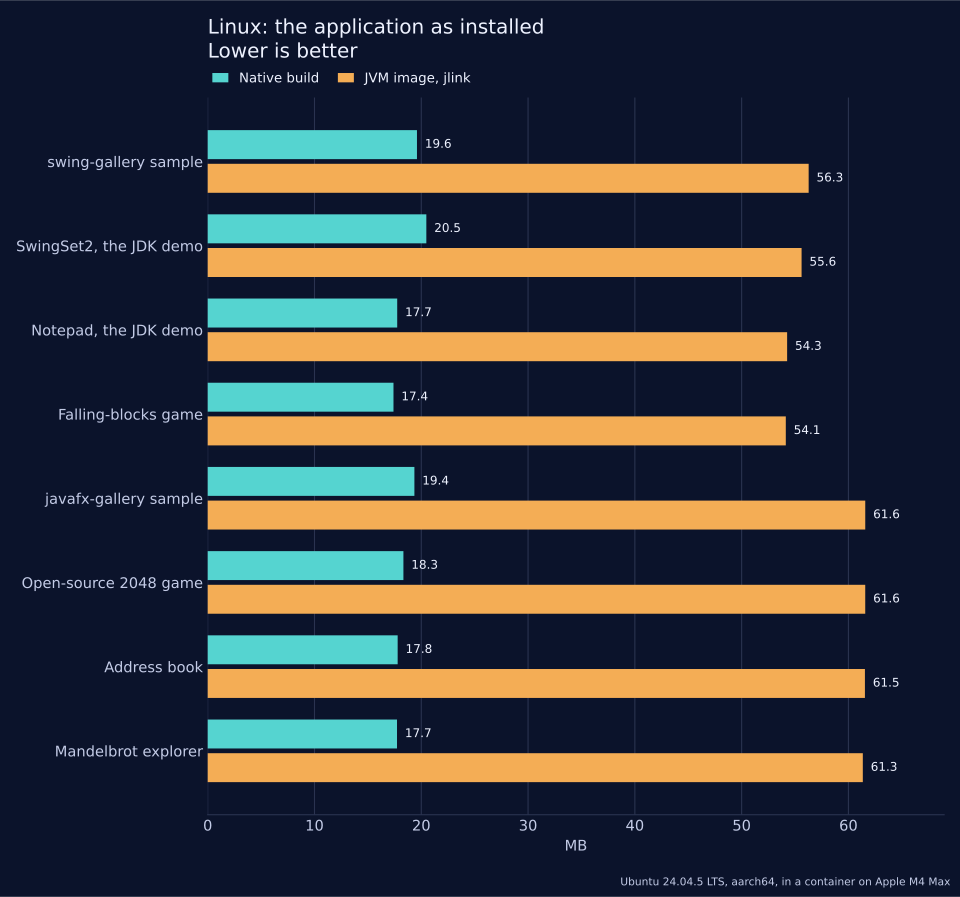
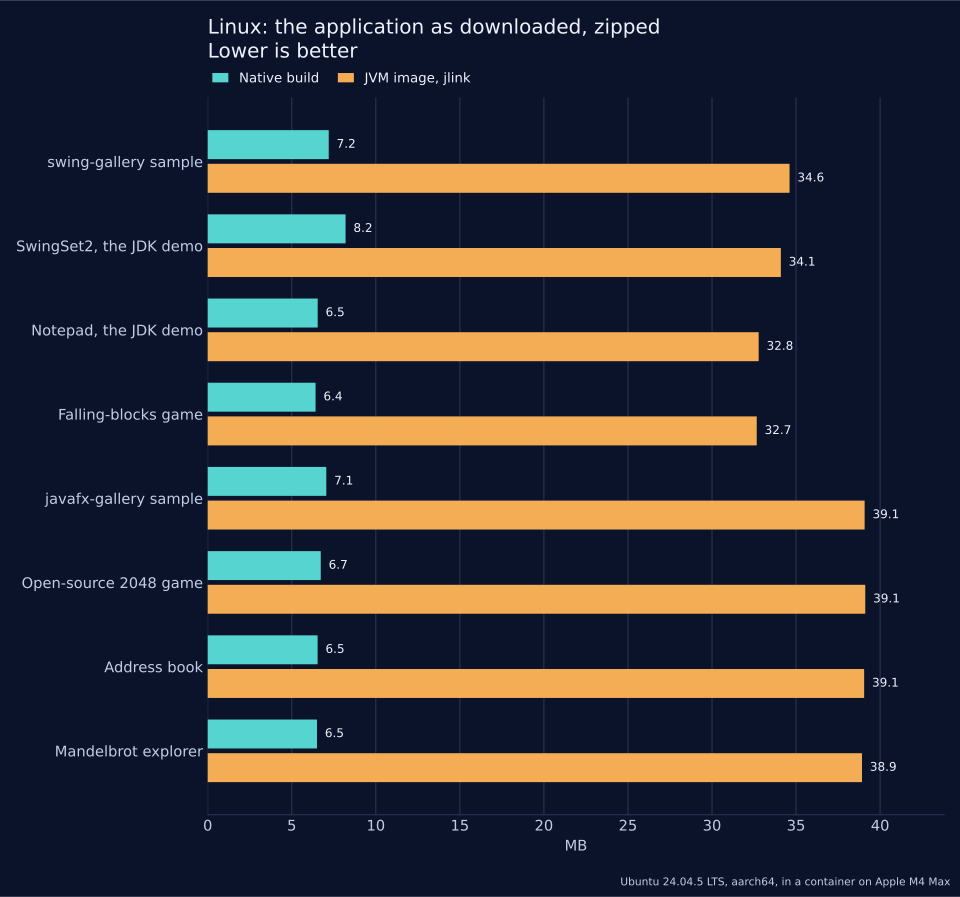
| Application | Toolkit | jlink image | jlink image, zipped | jpackage image, zipped | Native build | Native build, zipped | JVM image / native build | JVM zip / native zip |
|---|---|---|---|---|---|---|---|---|
| Swing | 56.3 | 34.6 | 34.8 | 19.6 | 7.2 | 2.9x | 4.8x |
SwingSet2, the JDK demo | Swing | 55.6 | 34.1 | 34.2 | 20.5 | 8.2 | 2.7x | 4.2x |
Notepad, the JDK demo | Swing | 54.3 | 32.8 | 32.9 | 17.7 | 6.5 | 3.1x | 5.0x |
Falling-blocks game | Swing | 54.1 | 32.7 | 32.8 | 17.4 | 6.4 | 3.1x | 5.1x |
| JavaFX | 61.6 | 39.1 | 39.2 | 19.4 | 7.1 | 3.2x | 5.5x |
Open-source 2048 game | JavaFX | 61.6 | 39.1 | 39.3 | 18.3 | 6.7 | 3.4x | 5.8x |
Address book | JavaFX | 61.5 | 39.1 | 39.2 | 17.8 | 6.5 | 3.5x | 6.0x |
Mandelbrot explorer | JavaFX | 61.3 | 38.9 | 39.0 | 17.7 | 6.5 | 3.5x | 6.0x |
The jlink image is the application with the smallest Java runtime that runs it: the application’s jars and the modules jlink found it to need. The native build is one executable file with nothing beside it. Both rely on the desktop libraries of the system, X11 and, for the native build and for JavaFX, GTK; neither column counts them.
Against the jlink image as installed the native build is smaller in 8 applications, of the 8 measured. Its best result is 3.5x for Mandelbrot explorer (17.7 MB against 61.3 MB).
Against the zipped jlink image the native build is smaller in 8 applications, of the 8 measured. Its best result is 6.0x for Mandelbrot explorer (6.5 MB against 38.9 MB).
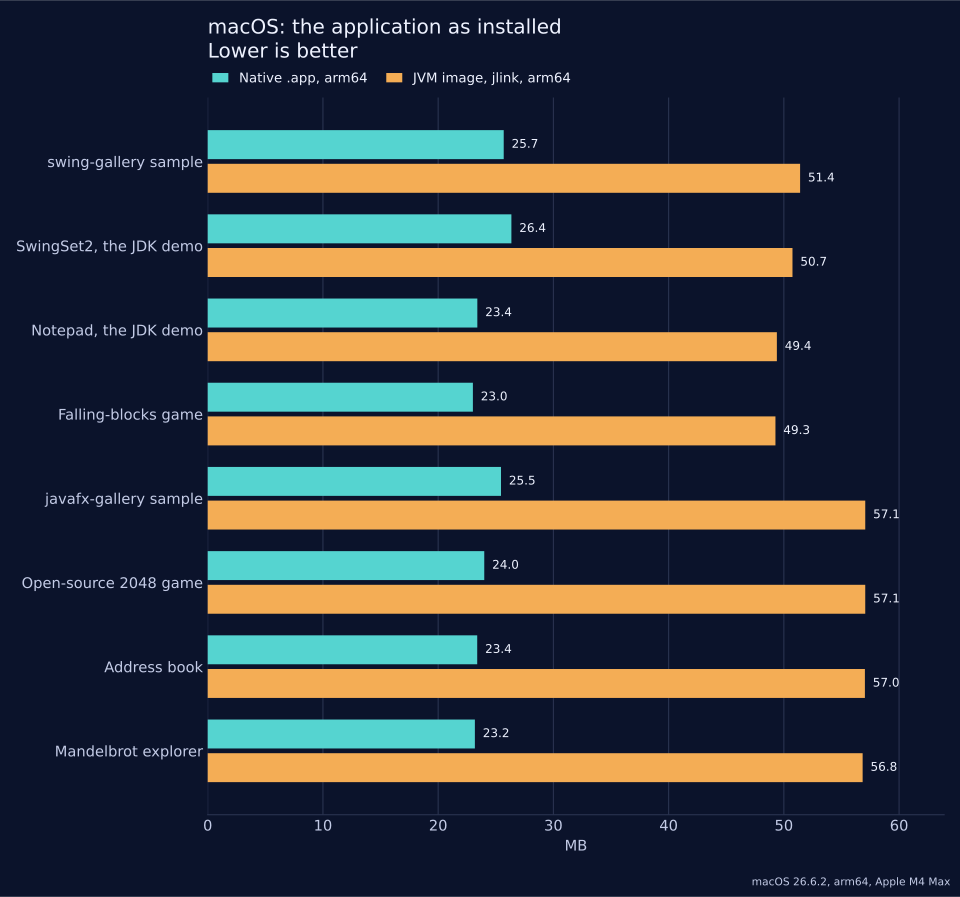
| Application | jlink image, arm64 | jlink image, zipped | Native .app, arm64 | Native .app, zipped | Universal .app | JVM image / native .app | JVM zip / native zip |
|---|---|---|---|---|---|---|---|
| 51.4 | 32.5 | 25.7 | 8.7 | 49.6 | 2.0x | 3.7x |
SwingSet2, the JDK demo | 50.7 | 32.0 | 26.4 | 9.8 | 49.5 | 1.9x | 3.3x |
Notepad, the JDK demo | 49.4 | 30.7 | 23.4 | 8.0 | 44.9 | 2.1x | 3.9x |
Falling-blocks game | 49.3 | 30.6 | 23.0 | 7.8 | 44.2 | 2.1x | 3.9x |
| 57.1 | 37.1 | 25.5 | 8.6 | 49.2 | 2.2x | 4.3x |
Open-source 2048 game | 57.1 | 37.1 | 24.0 | 8.1 | 46.0 | 2.4x | 4.6x |
Address book | 57.0 | 37.0 | 23.4 | 7.9 | 45.0 | 2.4x | 4.7x |
Mandelbrot explorer | 56.8 | 36.9 | 23.2 | 7.9 | 44.6 | 2.5x | 4.7x |
Both sides are built for arm64: the jlink image holds the arm64 runtime, and the native .app is the bundle with the arm64 slice of its executable only. The builder’s default output is universal, with an x86_64 slice beside it; its size is in the last size column.
Against the jlink image as installed the native build is smaller in 8 applications, of the 8 measured. Its best result is 2.5x for Mandelbrot explorer (23.2 MB against 56.8 MB).
Against the zipped jlink image the native build is smaller in 8 applications, of the 8 measured. Its best result is 4.7x for Mandelbrot explorer (7.9 MB against 36.9 MB).
| Application | iOS .app | iOS .app, zipped | iOS executable, stripped | Android APK | APK, unpacked | Of which dex |
|---|---|---|---|---|---|---|
| 28.1 | 9.4 | 18.2 | 3.0 | 5.8 | 3.9 |
SwingSet2, the JDK demo | 28.7 | 10.5 | 17.6 | 4.4 | 7.2 | 3.8 |
Notepad, the JDK demo | 25.6 | 8.7 | 16.3 | 2.9 | 5.5 | 3.5 |
Falling-blocks game | 25.1 | 8.6 | 16.1 | 2.8 | 5.3 | 3.4 |
| 27.8 | 9.3 | 18.0 | 3.1 | 5.9 | 4.0 |
Open-source 2048 game | 26.1 | 8.9 | 16.7 | 3.1 | 6.0 | 3.8 |
Address book | 25.4 | 8.6 | 16.5 | 3.0 | 5.8 | 3.9 |
Mandelbrot explorer | 25.3 | 8.6 | 16.3 | 2.9 | 5.5 | 3.6 |
| Application | Toolkit | Classes in the layer | Classes in the native build | Kept |
|---|---|---|---|---|
| Swing and AWT | 1039 | 737 | 71% |
SwingSet2, the JDK demo | Swing and AWT | 1039 | 587 | 56% |
Notepad, the JDK demo | Swing and AWT | 1039 | 566 | 54% |
Falling-blocks game | Swing and AWT | 1039 | 538 | 52% |
| JavaFX | 901 | 688 | 76% |
Open-source 2048 game | JavaFX | 894 | 413 | 46% |
Address book | JavaFX | 896 | 461 | 51% |
Mandelbrot explorer | JavaFX | 896 | 442 | 49% |
| Application | JVM, default | JVM, tuned | Native build | Default / native | Tuned / native |
|---|---|---|---|---|---|
| 326 (316-336) | 194 (193-195) | 96 (40-104) | 3.4x | 2.0x |
SwingSet2, the JDK demo | 220 (205-221) | 145 (144-157) | 56 (54-84) | 3.9x | 2.6x |
Notepad, the JDK demo | 175 (170-187) | 123 (107-134) | 55 (54-77) | 3.2x | 2.2x |
Falling-blocks game | 102 (101-119) | 70 (69-72) | 74 (54-102) | 1.4x | 0.9x |
| 603 (589-617) | 408 (386-428) | 100 (97-110) | 6.0x | 4.1x |
Open-source 2048 game | 307 (271-326) | 190 (160-205) | 77 (44-100) | 4.0x | 2.5x |
Address book | 407 (389-452) | 238 (233-266) | 74 (56-88) | 5.5x | 3.2x |
Mandelbrot explorer | 392 (373-424) | 214 (202-231) | 86 (76-94) | 4.6x | 2.5x |
Against the default JVM the native build is quicker in 8 applications, of the 8 measured. Its best result is 6.0x for javafx-gallery sample (100 ms against 603 ms).
Against the tuned JVM the native build is quicker in 7 applications and slower in 1 application, of the 8 measured. Its best result is 4.1x for javafx-gallery sample (100 ms against 408 ms). Its worst is 0.9x for Falling-blocks game (74 ms against 70 ms).
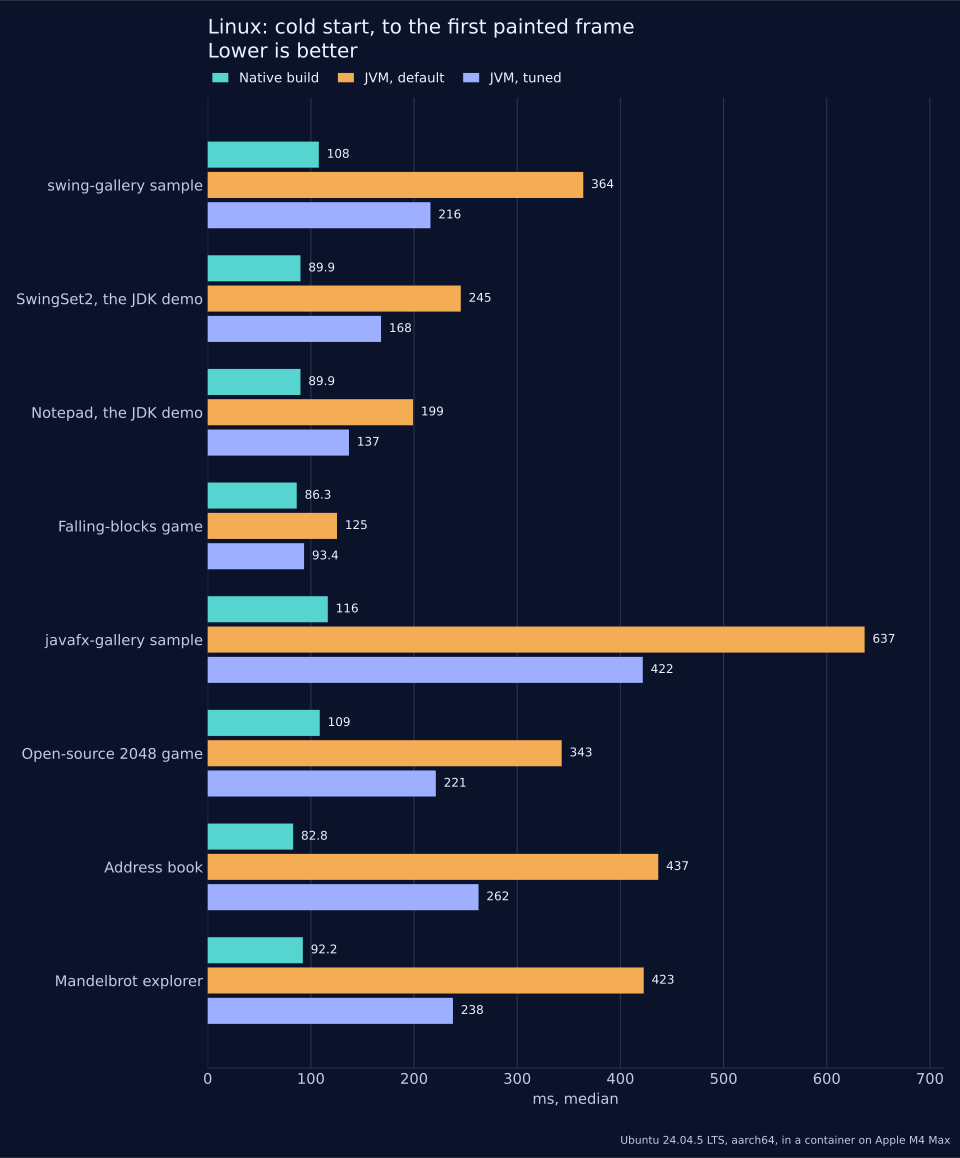
| Application | JVM, default | JVM, tuned | Native build | Default / native | Tuned / native |
|---|---|---|---|---|---|
| 364 (358-382) | 216 (212-236) | 108 (97-117) | 3.4x | 2.0x |
SwingSet2, the JDK demo | 245 (229-255) | 168 (151-180) | 90 (86-95) | 2.7x | 1.9x |
Notepad, the JDK demo | 199 (195-210) | 137 (126-150) | 90 (63-92) | 2.2x | 1.5x |
Falling-blocks game | 125 (124-140) | 93 (91-99) | 86 (65-90) | 1.5x | 1.1x |
| 637 (631-654) | 422 (415-432) | 116 (109-120) | 5.5x | 3.6x |
Open-source 2048 game | 343 (308-355) | 221 (206-226) | 109 (107-128) | 3.2x | 2.0x |
Address book | 437 (428-477) | 262 (258-269) | 83 (63-88) | 5.3x | 3.2x |
Mandelbrot explorer | 423 (363-428) | 238 (196-240) | 92 (92-96) | 4.6x | 2.6x |
Against the default JVM the native build is quicker in 8 applications, of the 8 measured. Its best result is 5.5x for javafx-gallery sample (116 ms against 637 ms).
Against the tuned JVM the native build is quicker in 8 applications, of the 8 measured. Its best result is 3.6x for javafx-gallery sample (116 ms against 422 ms).
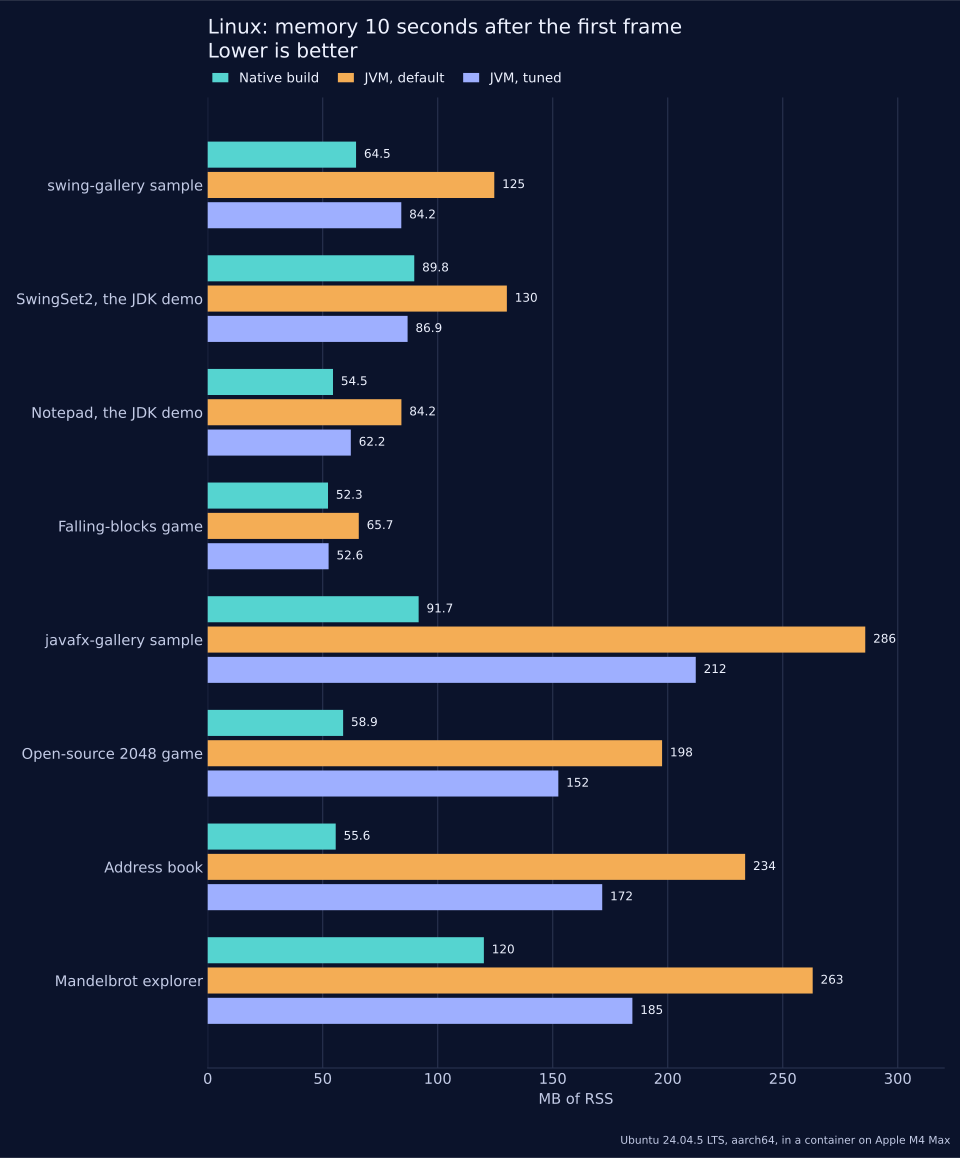
| Application | JVM, default | JVM, tuned | Native build | Default RSS / native | Tuned RSS / native |
|---|---|---|---|---|---|
| 124.6 / 119.1 | 84.2 / 78.6 | 64.5 / 56.4 | 1.9x | 1.3x |
SwingSet2, the JDK demo | 130.1 / 126.0 | 86.9 / 82.8 | 89.8 / 81.3 | 1.4x | 1.0x |
Notepad, the JDK demo | 84.2 / 80.2 | 62.2 / 58.2 | 54.5 / 47.0 | 1.5x | 1.1x |
Falling-blocks game | 65.7 / 61.8 | 52.6 / 48.6 | 52.3 / 45.4 | 1.3x | 1.0x |
| 285.9 / 258.1 | 212.2 / 184.5 | 91.7 / 83.3 | 3.1x | 2.3x |
Open-source 2048 game | 197.5 / 171.7 | 152.4 / 126.6 | 58.9 / 51.8 | 3.4x | 2.6x |
Address book | 233.6 / 207.4 | 171.5 / 145.2 | 55.6 / 48.3 | 4.2x | 3.1x |
Mandelbrot explorer | 263.0 / 236.0 | 184.6 / 157.6 | 120.1 / 112.3 | 2.2x | 1.5x |
Against the default JVM the native build is smaller in 8 applications, of the 8 measured. Its best result is 4.2x for Address book (55.6 MB against 233.6 MB).
Against the tuned JVM the native build is smaller in 6 applications and within 5% of it in 2 applications, of the 8 measured. Its best result is 3.1x for Address book (55.6 MB against 171.5 MB).
| Application | JVM, default | JVM, tuned | Native build | Default RSS / native | Tuned RSS / native |
|---|---|---|---|---|---|
| 118.4 / 112.9 | 86.0 / 80.5 | 90.8 / 81.8 | 1.3x | 0.9x |
SwingSet2, the JDK demo | 130.8 / 126.8 | 87.0 / 83.0 | 92.8 / 84.3 | 1.4x | 0.9x |
Notepad, the JDK demo | 91.0 / 87.0 | 63.5 / 59.4 | 58.2 / 50.6 | 1.6x | 1.1x |
Falling-blocks game | 68.3 / 64.4 | 53.8 / 49.9 | 54.3 / 47.4 | 1.3x | 1.0x |
| 293.8 / 266.0 | 213.3 / 185.5 | 109.4 / 99.7 | 2.7x | 1.9x |
Open-source 2048 game | 208.3 / 182.4 | 155.7 / 129.8 | 100.0 / 93.0 | 2.1x | 1.6x |
Address book | 245.8 / 219.5 | 172.6 / 146.3 | 57.2 / 49.8 | 4.3x | 3.0x |
Mandelbrot explorer | 293.4 / 266.3 | 197.6 / 170.6 | 172.2 / 164.5 | 1.7x | 1.1x |
Against the default JVM the native build is smaller in 8 applications, of the 8 measured. Its best result is 4.3x for Address book (57.2 MB against 245.8 MB).
Against the tuned JVM the native build is smaller in 5 applications, larger in 2 applications and within 5% of it in 1 application, of the 8 measured. Its best result is 3.0x for Address book (57.2 MB against 172.6 MB). Its worst is 0.9x for SwingSet2, the JDK demo (92.8 MB against 87.0 MB).
| Application | JVM, default | JVM, tuned | Native build | Default / native | Tuned / native | Tuned -Xmx (MB) |
|---|---|---|---|---|---|---|
| 128.5 | 88.0 | 90.1 | 1.4x | 1.0x | 8 |
SwingSet2, the JDK demo | 130.9 | 87.2 | 92.5 | 1.4x | 0.9x | 24 |
Notepad, the JDK demo | 92.9 | 64.0 | 57.7 | 1.6x | 1.1x | 8 |
Falling-blocks game | 70.3 | 54.2 | 53.9 | 1.3x | 1.0x | 8 |
| 296.7 | 215.8 | 108.8 | 2.7x | 2.0x | 48 |
Open-source 2048 game | 211.5 | 158.6 | 125.5 | 1.7x | 1.3x | 8 |
Address book | 248.6 | 175.3 | 56.7 | 4.4x | 3.1x | 48 |
Mandelbrot explorer | 296.1 | 200.2 | 340.5 | 0.9x | 0.6x | 48 |
| Application | JVM, default | JVM, tuned | Native build |
|---|---|---|---|
| 0.0% | 0.0% | 0.2% |
SwingSet2, the JDK demo | 0.2% | 0.0% | 1.6% |
Notepad, the JDK demo | 0.2% | 0.0% | 0.0% |
Falling-blocks game | 1.0% | 0.8% | 0.6% |
| 25.4% | 27.1% | 4.7% |
Open-source 2048 game | 3.9% | 2.5% | 4.8% |
Address book | 0.6% | 0.4% | 0.0% |
Mandelbrot explorer | 2.2% | 1.8% | 0.2% |
Of the 8 native builds, 5 idle at or under 1% of a core. Above it: SwingSet2, the JDK demo (1.6%), javafx-gallery sample (4.7%), Open-source 2048 game (4.8%).
Linux: Ubuntu 24.04.5 LTS, aarch64, 4 CPUs, 7.7 GB of memory, in a container, hosted on Apple M4 Max. The display is a virtual framebuffer, Xvfb, of 1280 by 800 pixels. GTK 3.24.41. Each display has had one GTK program on it before the measured application starts, as a desktop session has: the first GTK program on a display loads a GL driver to choose its visuals, and no later one does. OpenJFX 23.0.2 for the JavaFX baselines.
Tuned JVM flags:
-XX:+UseSerialGC -Xss256k -XX:TieredStopAtLevel=1 -XX:SharedArchiveFile=app.jsa, and the-Xmxof the table above.macOS, iOS and Android sizes: macOS 26.6.2, Apple M4 Max, Xcode 27.0.
The Linux display is a software framebuffer for both builds, and start-up and memory were measured on Linux only. Figures move with what an application does at start-up, so measure your own.
Measuring your own application
The harness that produced the tables is in the Codename One source tree,
under scripts/desktop-compat-benchmarks, and takes any Swing or JavaFX
project. It builds the application both ways, measures both and writes one
result.json, which report.py turns into tables:
scripts/desktop-compat-benchmarks/bench.sh --app /path/to/MyDesktopApp --name myapp \
    --kind swing --main com.example.Main --work /path/to/work
scripts/desktop-compat-benchmarks/report.py /path/to/work/myapp/result.json
The README.md in that directory lists what it needs. The phone sizes come
from a second script, run against the project the first one imported:
scripts/desktop-compat-benchmarks/mobile-size.sh --target ios \
    --project /path/to/work/myapp/cn1/app --work /path/to/work/myapp-ios
scripts/desktop-compat-benchmarks/mobile-size.sh --target android \
    --project /path/to/work/myapp/cn1/app --work /path/to/work/myapp-android
Troubleshooting
Each entry is a symptom and what to do about it.
Building
| Symptom | What to do |
|---|---|
The build names API the Swing or JavaFX layer doesn’t support. | Replace the call with one the layer has, or move the feature behind an
interface (Porting a large application). The full list is in
|
The message points at a library, not at your code. | If the application doesn’t need that part of the library, exclude the library and replace what you used from it. |
The build reports | The sources that use the toolkit are outside |
The import stops because it can’t choose an entry point. | Pass |
| The |
Kotlin sources under | Create |
Two resources have the same name after packaging. | Rename one of them. |
A style sheet warning says a property or selector is ignored. | Style that detail in the application’s |
JDK API
| Symptom | What to do |
|---|---|
| Replace reflection with code: |
Code that loads classes by name with | Those builds are obfuscated and keep only the classes something references, so a name in a string finds nothing. Reference the class directly, or register it in code. |
| Use |
| Use |
Starting a process throws | Processes run on the desktop targets. Check |
| Use the equivalents in Porting a large application. The zip and GZIP streams work unchanged. |
A relative path or a relative | A device has no working directory. Relative paths resolve inside the application’s storage; ship read-only files as resources. |
| A device has no environment. Use display properties or build hints. |
| Unicode script and block classes beyond the common ones and unbounded look-behind aren’t supported. Simplify the pattern. |
A | Key the map by the locale’s string form. |
Running
| Symptom | What to do |
|---|---|
A method the application overrides is never called. | The layer’s class doesn’t call it, and the build can’t see an override. Find another hook the layer does call, such as a renderer or a listener. |
A keyboard shortcut does nothing. | Function keys and Home, End, Page Up, Page Down and Insert aren’t reported, and a phone reports no modifiers. Give the action a menu item or a button too. |
The window pans sideways on a phone. | Something in it has a minimum width larger than the display. Use a layout
that wraps or stacks, put the wide part in a scroll pane, or lower
|
Text is wider or narrower than on the desktop. | Fonts are the platform’s and measure differently. Let a layout manager size the component. |
A JavaFX blur or glow isn’t drawn. | Use |
A JavaFX combo box can’t be typed into. |
|
An image from a relative | Load it as a resource. |